Payroll Management in ClearRing POS
The last day of the month has a particular dread to it if you run payroll from a spreadsheet. Numbers copied from one tab to another, an attendance figure that doesn't quite add up, the nagging worry that you've paid someone twice or not at all. Doing payroll inside the same system that already tracks your sales takes most of that away. Nothing gets entered twice, and there's no second spreadsheet to keep in sync.
ClearRing's payroll module moves every pay cycle through three clear stages, DRAFT to APPROVED to PAID, so at any moment you can glance at a run and know exactly where it stands and what's left to do.
Before you run anything
A payroll run is only as good as the data underneath it, so three things need to be in place first. Each employee should have a profile under HR then Employees with their salary or rate type set, whether that's a monthly flat figure, an hourly rate, or commission. If you pay by the hour or against attendance, the attendance records for the period need to be posted. And any advances or deductions should already be sitting under HR then Advances so they pull through correctly.
Creating the run
Go to Payroll then Runs and click New Run.
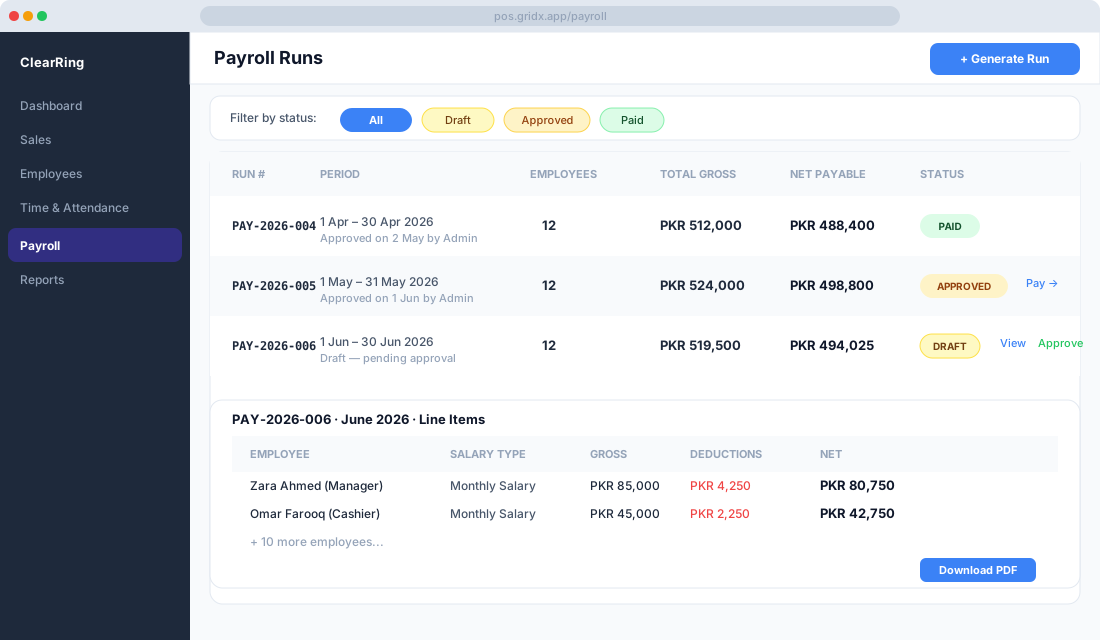
You'll fill in a few details: the pay period (say, January 2026), the pay date (31 Jan 2026), and the payment method, such as Bank Transfer. Click Generate and ClearRing pulls in every active employee and works out each person's gross pay from their rate type and attendance.
Going through the line items
The run opens in DRAFT, with one row per employee. Each row shows the employee's name and role, their base pay calculated from rate times days or hours worked, any allowances for transport, meals, or housing, advances they've already taken, deductions like late penalties or tax, and finally the net pay that will actually land in their account.
Click any row to open the detail panel, where you can edit individual line items, drop in a one-time bonus, fix an attendance slip, or attach a note like "Q4 performance bonus" so there's a record of why a number looks the way it does. While the run stays in DRAFT, every change you make saves in real time.
Approving it
When the line items look right and the total sits where you expect, click Approve Run. A confirmation dialog shows the full payout across all employees before you commit.
Approval is gated. Only users with the payroll.approve permission, usually the owner or a manager, can sign it off. Once they do, the run flips to APPROVED, edits are locked unless you deliberately Revert to Draft, and the pay period itself is locked so nobody can accidentally generate a duplicate run for the same month.
Marking it paid
Once the bank transfers have gone out or the cash has been handed over, open the approved run and click Mark as Paid. Enter the payment date and a reference number, like the bank transaction ID.
The run then moves to PAID, and this one is final. There's no undoing it, because it's the permanent record that the money actually went out.
Getting the pay slips
From a PAID run, click Download Pay Slips and you'll get a ZIP containing an individual PDF for every employee. Each slip carries your company name and logo, the employee's name, designation, and ID, an itemised breakdown of base pay, allowances, and deductions, the net pay and how it was paid, and a manager signature line. If you only need one person's slip, you can pull it straight from their expanded row instead.
If you've turned on the Employee Self-Service Portal, your staff can skip you entirely and download their own slips under My Pay Slips whenever they need them, which saves you fielding the same request every month.
Looking across runs
For the bigger picture, head to Reports then Payroll Summary. It pulls together your monthly payroll cost trend, cost broken down by department or role, the year-to-date total paid per employee, and an export to Excel when it's time to file tax.
Questions that come up
What if someone joins mid-cycle? Open the DRAFT run, click Add Employee, find them, and their pro-rated pay for the remaining days is worked out automatically.
Can you run payroll for just one department? Yes. When you create the run, use the Department Filter to include only the departments you want.
And what about an employee with an outstanding advance? Anything recorded under HR then Advances is deducted from net pay automatically in the next run, so you don't have to track it by hand.
The whole point of this lifecycle is that no run gets finalised before someone has actually looked at it, and you're not hand-building pay slips at midnight. For a small or mid-sized business, that's a few hours back every month and a clean, auditable record at the end of it.