Canteen & Food Service Management in GridX SCM
Picture the lunch rush. Three hundred kids hit the canteen in the same fifteen-minute window, a cashier is counting coins and making change while the queue snakes out the door, and somewhere a paper meal ticket has gone missing. By the time the last student is served, half the lunch break is gone and nobody can say for sure how much money came in.
The Canteen module is built to take that whole scene apart. Students carry a pre-funded balance, the menu lives on a screen instead of a chalkboard, and every order is logged the moment it's confirmed. Parents top up from home, cash mostly disappears from the equation, and the supervisor can see the day's takings without counting a single note.
The module breaks down into three places you'll spend your time: Menu Management, where you build and price the food; the Order Station, the counter or tablet screen where orders actually get placed; and the Canteen Dashboard, which shows live revenue, order volume, and low-stock warnings as the day unfolds.
Building your menu
Start in Canteen, then Menu Management.
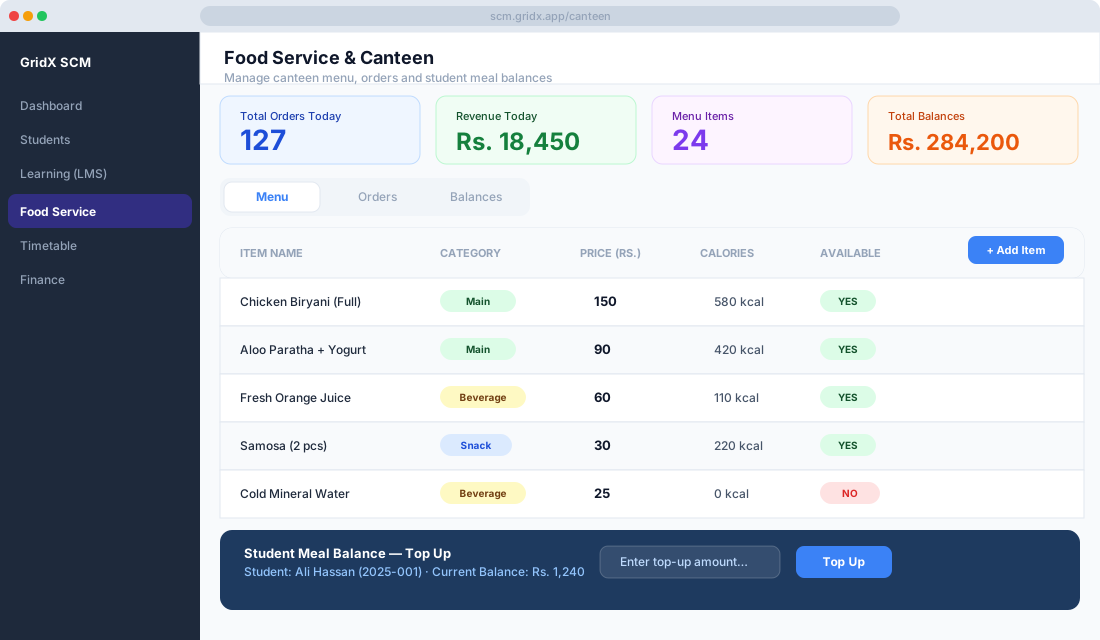
Use "Add Category" to lay out your sections — Mains, Sides and Snacks, Beverages, Desserts, whatever fits your kitchen. Then drop items into each one with "Add Item."
Each item carries the details that matter at the counter and in the kitchen. For a plate of Chicken Biryani, that's the name, the Mains category, a price of PKR 120, the days it's available (say Mon to Fri), a maximum daily quantity like 150 so you don't oversell, and allergen info such as "contains gluten." You can upload a photo or leave the emoji placeholder.
Every item has an Available / Unavailable toggle. When the biryani runs out at 12:30, flip it to unavailable and it greys out instantly on the ordering screen — no more taking orders for food that's already gone.
Setting up student meal balances
Each student account comes with a Meal Balance, which is really just a pre-funded wallet. It switches on automatically the moment you enable the Canteen module, so there's nothing extra to configure.
Topping one up is quick. Open Canteen, then Balances (or find the student under Students), click "Top Up Balance," enter the amount, pick the payment mode — cash at the counter or bank transfer — and confirm. The balance updates on the spot.
If you've enabled the parent portal, parents can skip the counter entirely and top up their child's balance through an online payment link, with a receipt landing by email or SMS. And to avoid the awkward "sorry, you're out of money" moment at lunch, you can set a minimum balance alert: drop below PKR 200 and the parent gets a nudge.
Placing an order
At the counter or on a self-service tablet, the cashier or student opens the Order Station and finds the student — by name, by roll number, or by scanning an ID card or wristband. The available balance shows straight away.
From there it's a matter of tapping items off the menu, grouped by category, while the running total updates live. Hit "Confirm Order" and the amount comes off the student's balance, with a receipt following on paper or as an SMS or in-app notification.
If the balance won't cover the order, the system flags it before anything is charged. Depending on how your school has set things up, the cashier can extend a small credit or ask the student to top up first — your call, configured per school.
How a typical day runs
In the morning, canteen staff open the dashboard to today's menu and can mark anything sold out the moment supplies run thin.
Come lunchtime, orders land at the station and each confirmed one drops into the Today's Orders list with the student's name, their items, and the amount — a live tally instead of a stack of tickets.
At the end of the day, the supervisor opens Reports, then Canteen Summary. A typical day might show 312 orders, PKR 38,640 in revenue, Chicken Biryani out front as the top seller with 147 orders, and a couple of items flagged for low stock. No cash count, no guesswork.
Pre-ordering for schools that want shorter queues
If the lunch crush is still too much, turn on Pre-Order Mode. Students place their lunch order through the student portal before a cut-off time — 8:00 AM, say — and the kitchen sees exactly what to prepare. At lunch, the student walks up and collects their tray. No queue, no ordering at the counter, and a kitchen that isn't guessing how many biryanis to cook.
Reading the revenue reports
For the longer view, head to Reports, then Canteen. You'll find a daily revenue chart covering the last 30 days, an item-popularity breakdown showing which meals move best, a balance top-up history that tracks parent payments, and printable per-student balance statements for when a parent calls with a question. Everything exports to Excel or PDF.
A few things people ask
What happens when a student forgets their ID card? They're still findable by name search at the order station, so nobody goes hungry over a forgotten card.
Can staff use the canteen too? Yes — staff accounts can carry meal balances and order at the same station as students.
Can you cap how much a student spends in a day? You can. Under Canteen Settings, set a maximum daily spend per student, for example PKR 500 a day.
And if staff and students pay different prices, enable Tiered Canteen Pricing and set separate staff and student rates on each item.
Once the cash drawer stops being the bottleneck, the canteen turns into one of the calmer parts of the school day — shorter queues, fewer "I already paid" disputes, and a clean record of every plate that crossed the counter.