LMS & Online Learning in GridX SCM
Most schools end up with two worlds that never quite meet. There's the school management system that handles attendance, timetables, and results, and then there's some separate video-and-assignments tool the teachers were told to use during lockdown. Logins don't match, grades live in two places, and nobody enjoys reconciling them.
The Learning Management System inside GridX SCM closes that gap. Teachers build courses, upload video lectures, post assignments, run quizzes, and track who's actually submitting — all in the same platform that already knows your students, your classes, and your grade book. No second tool to license, no data to copy across.
Everything in the LMS hangs off four ideas. A Course is a subject-specific container, like "Grade 10 Mathematics." Inside it, Sections act as units or chapters. Each section holds Content — video lectures, PDF notes, or external links. And an Assessment is an assignment or quiz tied to a section. Once those click into place, the rest of the module makes sense.
Creating a course
Go to LMS, then Courses, and click "New Course."
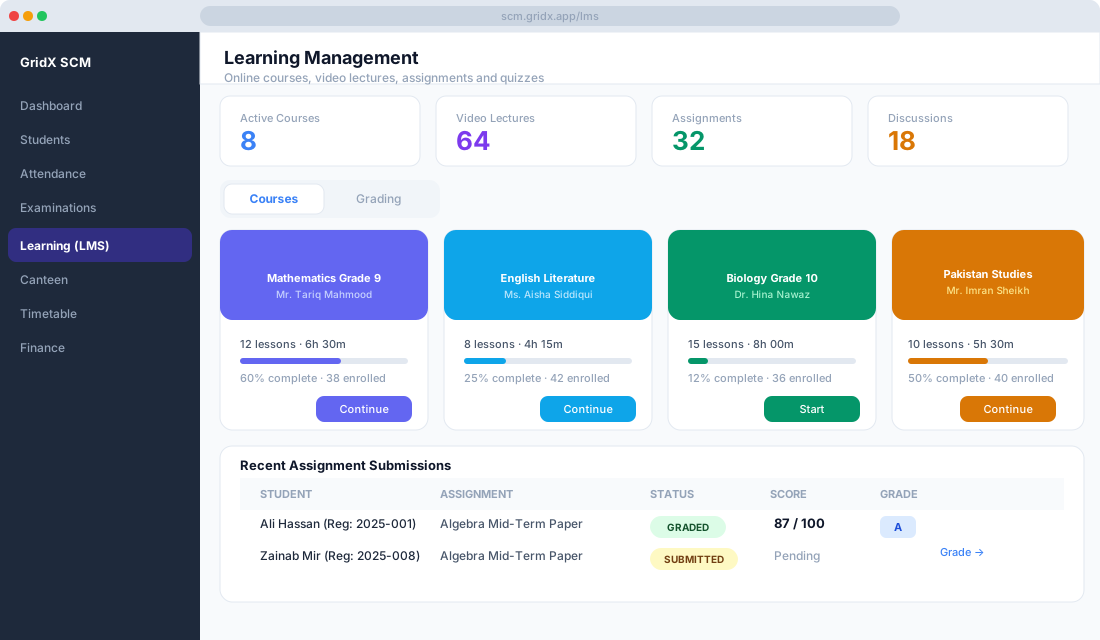
Fill in the basics. For a physics course that might be the title "Grade 10 — Physics," the class "Grade 10 — Section A," the subject Physics, the teacher Ms. Zara Khan, and a subject-themed cover image. Click "Create Course" and it lands on the course grid, visible to every enrolled student.
Building out the content
Open your new course and click "Add Section" to create the first chapter — say, "Chapter 1: Forces and Motion." Then, inside that section, click "Add Content" and choose what to drop in.
You've got three kinds of content to work with. A video lecture can be a YouTube or Vimeo URL you paste in, or an MP4 you upload to your own storage; either way students watch it right in the browser without leaving the LMS. PDF notes let you upload a handout. And an external link points students to a PhET simulation, a Wikipedia article, or any webpage you trust. Repeat for each chapter and your curriculum takes shape one section at a time.
Posting an assignment
Inside any section, click "Add Assessment" and pick Assignment. You'll set a title like "Chapter 1 — Practice Problems," instructions such as "Solve questions 1–10 from page 22, show all working," a due date of 5 Feb 2026 at 11:59 PM, a maximum of 20 marks, and a submission type — File Upload for a PDF or image.
Hit "Publish" and the assignment shows up immediately as a card in each enrolled student's course view, with the deadline highlighted so there's no "I didn't know it was due" later.
Enrolling students
Back on the course page, click "Enrolled Students," then "Manage Enrollment." You can add students one at a time by searching name or roll number, bulk-enroll an entire class section in a single click, or upload a CSV for the really large batches. Whoever you add gets an in-app notification, plus an optional email, telling them they're in the course.
When a student submits
From their own portal, the student opens the course, finds the assignment, and clicks "Submit Assignment." They upload their file — PDF, image, or Word document — and submit. On your side, a badge appears on the assignment showing how many new submissions are waiting, so you're not refreshing the page hoping work has come in.
Grading and feedback
Open the assignment and click "View Submissions." You'll see each student listed with their name and roll number, the date and time they submitted, and their attachment to download or preview. Next to that is an editable marks field where you type the score out of the maximum, an optional feedback box for a comment back to the student, and a status that flips from Pending to Graded as you go.
Enter marks and feedback, click "Save Grades," and each student is notified of their result. The whole class can be graded in one sitting without a register or a calculator in sight.
Running a quiz
For something that grades itself, create an Assessment of type Quiz. In the builder you add questions — multiple choice, true/false, or short answer — set the marks per question, and optionally set a time limit and an attempt limit, like one attempt only.
When a student opens the quiz a timer starts. On submission, the multiple-choice questions are scored automatically, while short-answer questions sit in Pending for you to review by hand. It's the right split: the machine handles the obvious, you handle the judgment calls.
Seeing who's keeping up
Go to LMS, then Reports, then Course Progress. You'll see a completion percentage per student based on lectures watched and assignments submitted, the average score per assessment, and — this is the useful one — a flag on any student who hasn't opened the course in the last seven days, so you can follow up before they fall too far behind.
Students get their own view of the same picture. The Student Portal shows each of them a progress bar, their grades, and upcoming deadlines on a single dashboard.
The discussion forum
Every course has a built-in discussion thread where students ask questions and reply to each other, and teachers can pin important announcements to the top. Everyone taking part is notified when there's a new post, so a question asked at 9 PM doesn't sit unanswered in someone's inbox.
A few common questions
Can parents see their child's grades? Yes — with the Guardian Portal enabled, parents can view course enrollments, grades, and submitted assignments for the child linked to their account.
Can a teacher run more than one course? They can own as many as they like, across different subjects and classes.
Can content be reused? PDF notes and external links copy over to another course through the "Duplicate Section" option, and any video linked by URL is automatically available wherever you reference it.
The point of all this isn't to digitise teaching for its own sake. It's that students can revisit a lecture at their own pace, hand work in without printing it, and get feedback faster — while every grade and submission stays in the same place as the rest of the student's record.