Winning a brand-new customer costs you far more than keeping one you already have. That's the quiet economics behind two tools ClearRing POS gives you straight out of the box: gift cards, which pull money in today and put your shop in someone else's hands as a present, and a loyalty program with tiers that gives regulars a reason to walk past your competitor. This guide goes screen by screen, from the first bit of setup to what your cashier does at the counter on a normal afternoon.
Setting up gift cards
Start by switching the module on. Go to Settings, then Modules, and toggle Gift Cards on. A Gift Cards item appears in the left sidebar straight away.
To issue one, open Gift Cards, then Issue Card.
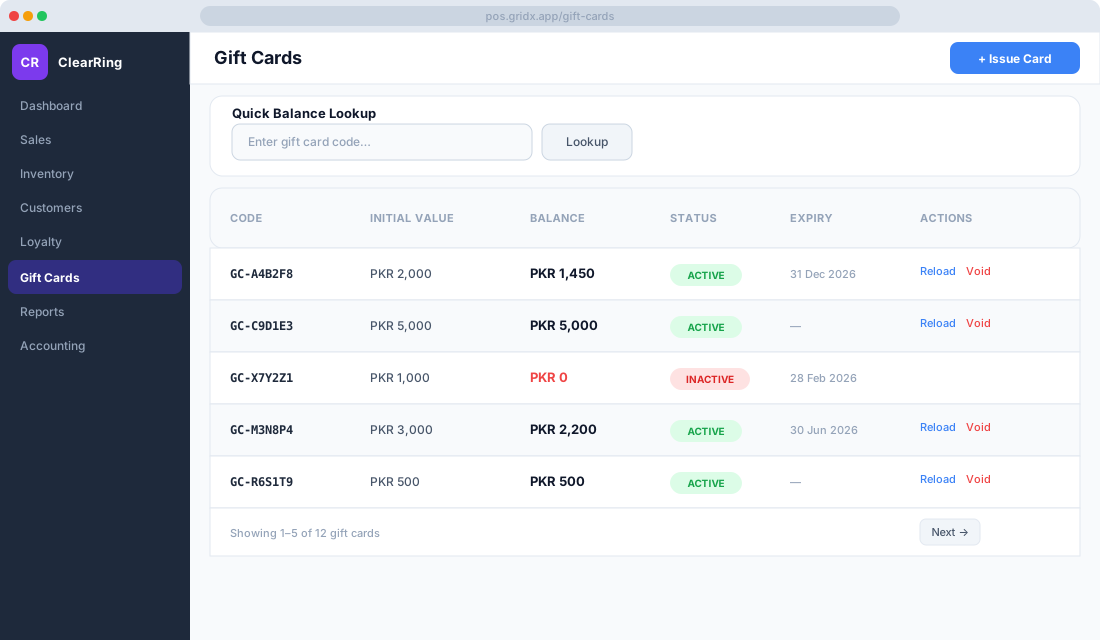
The form is short. You pick the customer — say Aisha Malik, linked from your customer directory — let the card number auto-generate as something like GC-00142 or scan a physical card's barcode, set an opening balance such as PKR 2,000, and choose an expiry, often twelve months out. Click Issue Card and a receipt prints on its own, with the balance live in the system from that moment. If you'd rather sell cards off the shelf, leave the customer field blank and you've got an anonymous card ready for resale.
Topping up an existing card is just as quick. Scan or type the card number in the search bar, click Reload Balance, enter the amount, and confirm payment. The new balance updates in real time over WebSocket, so a second terminal logged in across the shop sees the change immediately — no refreshing, no arguments about what's left on the card.
When a customer pays with one, the cashier taps Payment during the sale and chooses Gift Card, then scans or types the number. The screen lays out the current balance, the amount being applied to this sale, and what's left afterward. Cards mix happily with other tenders too: PKR 1,000 off the gift card and PKR 500 in cash settles a PKR 1,500 bill without fuss.
Need to look something up or pull a card out of circulation? Open any card from the Gift Cards list to see its full transaction history. A manager holding the gift_cards.manage permission can void a card, which zeroes the balance and deactivates it.
Building the loyalty program
The loyalty side starts under Loyalty, then Settings.
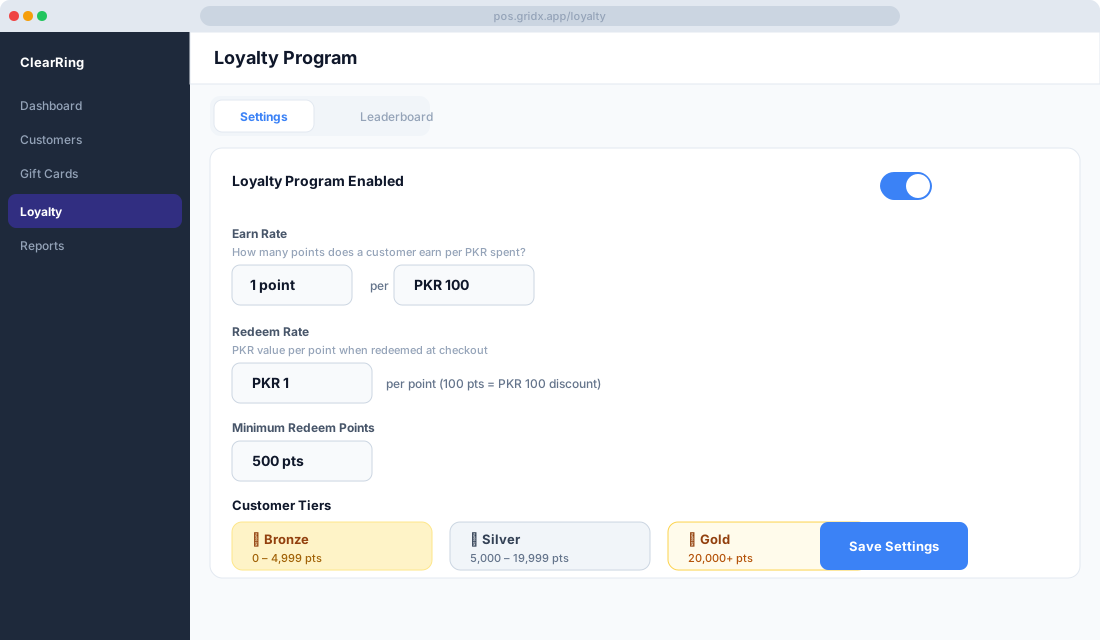
First, decide how points are earned and spent. A common setup is one point for every PKR 100 spent, redeemable at 100 points for a PKR 50 discount. Pick numbers that feel generous enough to notice but not so rich they eat your margin.
Next come the tiers — ClearRing supports up to five. Click Add Tier and set a name, a minimum points threshold, a bonus multiplier, and a badge colour. A typical ladder runs Bronze from zero points at a 1× multiplier in orange, Silver from 1,000 points at 1.5× in gray, and Gold from 5,000 points at 2× in gold. Customers move up automatically the moment they cross a threshold, so nobody has to manage promotions by hand.
Referrals are worth turning on while you're here. Under Loyalty, then Settings, then Referral, enable Referral Bonus and set the rewards — for instance, 200 points to the existing customer who refers a friend, credited when that friend makes a first purchase, and 100 points to the new customer at sign-up. When a cashier creates a new customer at the POS, they can enter a Referred By code and both accounts are credited automatically.
How it plays out at the counter
Once a loyalty customer's sale is rung up, points are credited without anyone lifting a finger. The receipt shows the maths plainly:
Points earned this sale:  +45
Total loyalty points:    1,320
Tier:                    Silver
The customer can opt in to an SMS or email confirmation on top of that. To spend points, the cashier clicks Redeem Points at checkout, the screen shows the available balance and the discount it's worth, the customer confirms, and the discount applies instantly with the points deducted then and there.
When you want to see who your best customers really are, open Loyalty, then Leaderboard, for a ranking by total points.
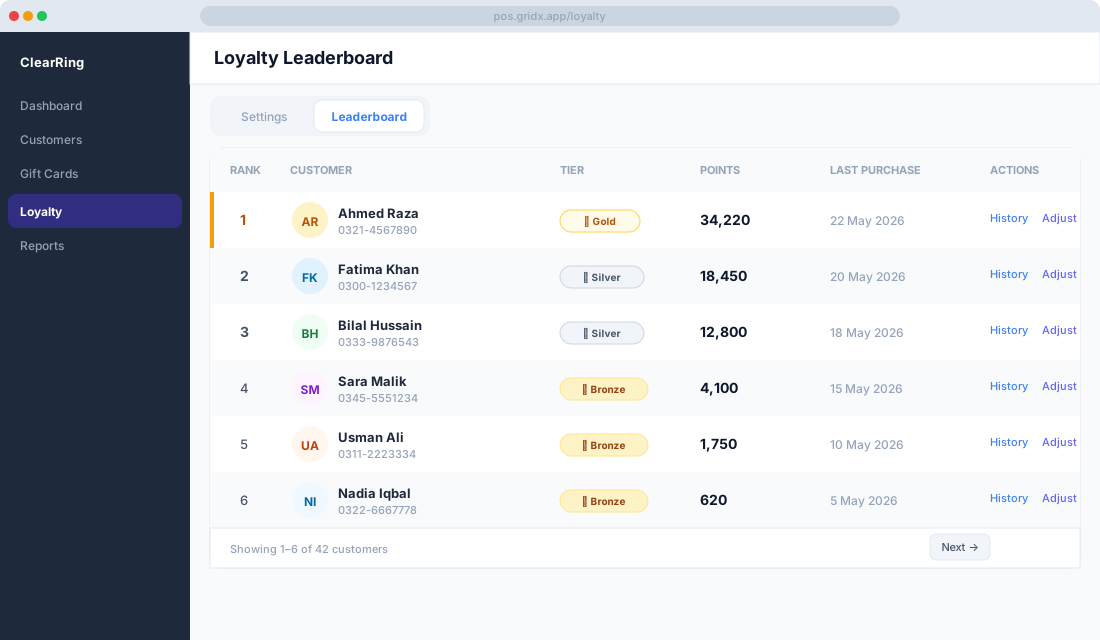
It's a practical list. Use it to spot the VIPs worth a personal phone call, to build a targeted offer for customers sitting just below the next tier, or to export names for an email campaign.
The questions cashiers actually ask
Can a customer use a gift card and loyalty points in the same sale? Yes. At payment, apply the gift card first and then redeem points against whatever's left — the two work independently.
Does a refund take the points back? It does. When a sale is refunded, the points it earned are deducted from the customer's balance automatically, so nobody games a refund into free points.
Can you stop certain products from earning points? Yes. Under Loyalty, then Settings, then Excluded Categories, mark any category — gift cards or tobacco, for example — as excluded.
Set both modules up once and you've got a retention engine that runs itself: gift cards bringing money and new faces through the door, loyalty tiers turning a one-time buyer into a regular, and your cashiers doing nothing extra to make either work.