The sale you can't actually make
A customer points at the shelf, you nod, and then you realise the box is empty even though your system swears you have twelve in stock. That moment costs you more than one sale. It chips at the trust that brought the customer in, it can tangle up your FBR invoice, and it quietly inflates the revenue figures you're using to make decisions.
The opposite hurts too. Stack the stockroom too high and your cash is frozen in goods that may spoil or go out of fashion before they sell. Good inventory management lives in the narrow band between those two mistakes, and that's exactly where ClearRing's Inventory module is meant to keep you, with live stock figures, automatic alerts, and a purchase-order flow wired straight into your supplier records.
Reading the inventory screen
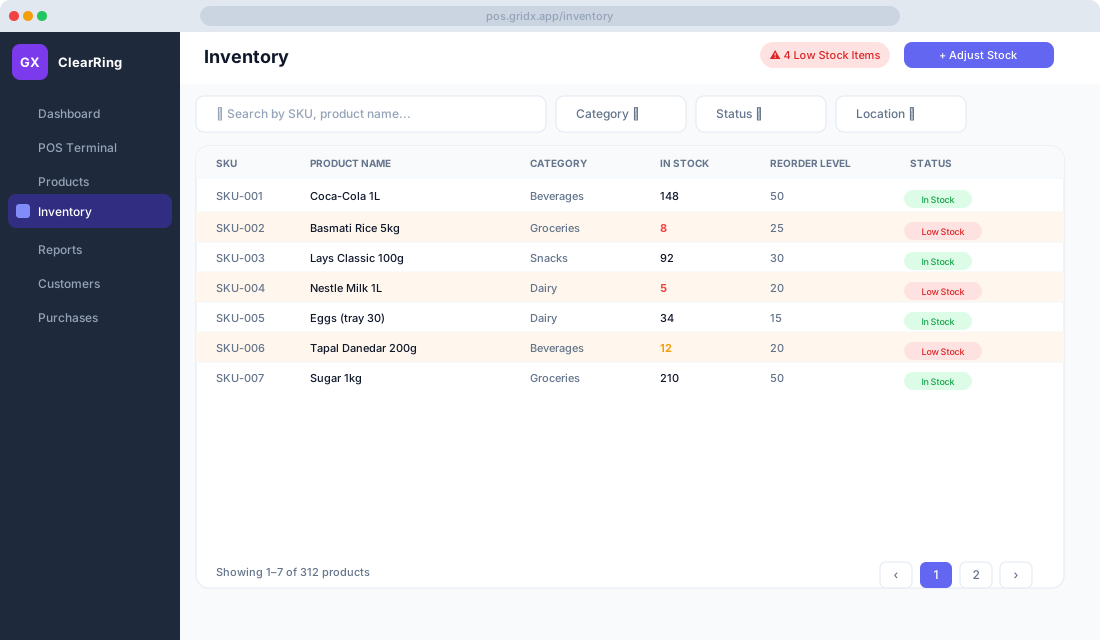
Open Inventory from the sidebar and you're looking at everything you stock. Each product carries its SKU, the unique identifier like SKU-001 that ties it together everywhere. Alongside that you get the full product name as it reads in your catalogue, its category for filtering, the quantity you currently have on hand, the reorder level you've set as your low-stock threshold, and a status of In Stock, Low Stock, or Out of Stock.
The colours do the work for you. Anything low turns amber. Anything out of stock turns red and also gets flagged on the POS product grid, so cashiers know before a customer asks rather than after.
Telling the system when "low" means low
Every product deserves a reorder level, the smallest quantity you're comfortable holding. The moment stock touches or drops below it, ClearRing marks the item Low Stock and a notice appears on your dashboard.
Setting it takes a few seconds. Go to Products, edit the product, scroll to the Inventory section, type in the reorder level, and save. The right number depends on how fast the item moves. Something like Coca-Cola or a popular pack of Lays might warrant a reorder level of 50 because it flies off the shelf. A slow mover is fine sitting at 5.
Fixing the numbers by hand
Sometimes stock arrives informally, or a physical count turns up a gap between what the system thinks and what's really on the shelf. That's what Adjust Stock is for. Click the button at the top-right of the Inventory page, search for the product, and either enter the corrected quantity or a plus-or-minus adjustment. Pick a reason from the list (Received Goods, Stock Count, Damage, Theft, or Other) and confirm.
Every adjustment is stamped with the time and the person who made it, so you always have a trail showing how a number got where it is.
Counting the shelves
Monthly or quarterly stock counts are a fact of life for Pakistani retailers, often for tax and compliance reasons, and ClearRing has a flow built for them. Print the Stock Count Sheet from Inventory then Export, count what's physically on your shelves, then come back and use Bulk Adjust to upload a CSV that reconciles the differences in one go. The system records each discrepancy and produces a Shrinkage Report so you can see where stock is going missing.
From order to received goods
The Purchases module, over in the sidebar, runs the whole procurement cycle.
To raise a purchase order, click New Purchase Order, pick or create a supplier with their name, contact, and STRN if they have one, then add line items by searching product name or SKU. Enter how many you're ordering and the unit cost, set an expected delivery date, and either Save and Send to email it straight to the supplier or Save Draft to hold it for later.
When the goods turn up, open the PO from Purchases then Open Orders and click Receive Goods. Enter what actually arrived, which won't always match what you ordered. If it's short, ClearRing records a partial receipt and keeps the PO open for the rest. Confirm, and your inventory updates on its own. This is the way to update stock, partly because it's accurate and partly because it also writes the matching accounting entry behind the scenes, debiting Inventory and crediting Accounts Payable.
Over time, all that order history becomes useful in its own right. You can watch the average cost per unit drift up or down, which gives you something concrete to point at when you're negotiating price. You can see which suppliers actually deliver on time, and you can spot the items you reorder constantly and turn them into recurring PO templates.
Getting told before you run out
ClearRing pushes both email and in-app alerts when stock slips below its reorder level, and you decide who hears about it under Settings then Notifications. An owner or admin can get a single low-stock digest each morning. A purchase manager can get real-time alerts through the working day. And cashiers see a warning badge right on the product card at the till.
More than one branch
Run several branches and each one keeps its own inventory. Move between them with the location switcher in the top bar. From there you can view aggregate stock across every location, spot which branch is sitting on surplus of a given SKU, and kick off a Stock Transfer to shift inventory from where it's piling up to where it's needed. The Multi-Location Management guide goes deeper on transfers.
What your stock is worth on paper
When the accountant or the tax man needs a number, the Inventory Valuation Report under Reports then Inventory Valuation has it. For each product it shows the current quantity, the average unit cost, the total value (quantity times cost), and how that value has changed since the previous period. With the Accounting module switched on, this figure flows straight into the Current Assets line of your Balance Sheet.
Habits that keep the numbers honest
A short weekly count of your top 20 SKUs, maybe half an hour, stops small gaps from snowballing into the kind of discrepancy that ruins an afternoon. Enter supplier invoices promptly, because every day you delay is a day your inventory and accounting quietly drift apart.
Lean on SKU barcodes and receive goods by scanning rather than typing, which kills off a whole category of entry errors. And keep your shrinkage honest by using the Theft and Damage reasons deliberately, so when an insurer or an FBR auditor asks, you have a real trend to show them instead of a shrug.