The screen your cashier lives on
Picture a Saturday evening at a grocery counter in Lahore. The queue is six deep, a child is tugging at the chocolate rack, and your cashier needs to ring up each basket without fumbling. That moment is what the ClearRing POS Terminal is built for: quick taps, no clutter, and an FBR-compliant receipt at the end of every sale.
The same screen works whether you run that grocery store, a pharmacy in Karachi, or a clothing boutique in Islamabad. Let's walk through how it actually behaves during a busy shift — the grid, the cart, the shortcuts, and what happens the day your internet decides to take a break.
Two panels, and that's the whole layout
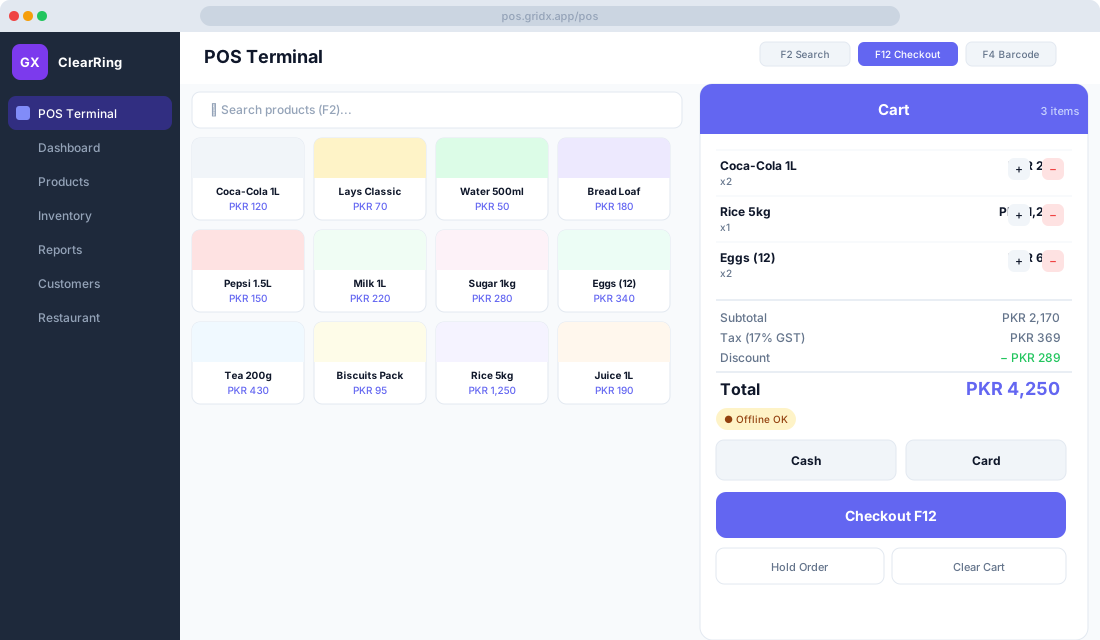
Open the terminal and you'll see products on the left, the cart on the right. Nothing else to learn.
The product grid shows each item as a card with its name, price, and a category colour so the eye can find things fast. Tap a card and it drops straight into the cart. If you carry hundreds of SKUs, the category filter tabs above the grid cut down the scrolling considerably — switch to "Beverages" and only beverages remain.
When you'd rather type than hunt, press F2 to jump into the search bar. ClearRing looks across product name, SKU, and barcode at the same time, and results narrow as you type. There's no Search button to chase.
Over on the right, every item you add becomes a cart line with the product name, plus-and-minus quantity controls, and a running line total. The Subtotal, GST at 17%, and any discounts are all worked out and shown before you reach the final amount, so there are no surprises at the moment of payment.
A keyboard-first counter
Mice slow people down. The cashiers who get fast with ClearRing are the ones who keep their hands on the keys.
Four shortcuts cover almost everything. F2 drops the cursor into product search. F4 switches on barcode scanner input. F12 opens the checkout and payment dialog. And Escape clears the search or closes whatever dialog is open. Once those are muscle memory, a full sale — find the product, add it, take payment — happens without anyone reaching for the mouse.
Scanning barcodes
ClearRing pairs with any USB or Bluetooth HID barcode scanner. Press F4 to enter barcode mode and scan; the product is matched by its barcode and added with a quantity of one. Scan the same item again and the quantity ticks up, which is exactly what you want when a customer buys three of the same juice.
If you haven't set up barcodes yet, print shelf labels from the Products module and assign a barcode whenever you create or edit a product. EAN-13, EAN-8, Code 128, and QR codes are all supported.
Discounts, promo codes, and loyalty at checkout
Most counters need to knock a little off a price now and then. During checkout you can apply a manual discount as a percentage or a fixed amount, which is handy for a regular customer or an end-of-day clearance. You can also enter a promo code like EIDFEST20 and let ClearRing validate and apply it on the spot. And if the customer has loyalty points sitting on their account, the cashier can redeem those for a discount too.
Whatever you apply gets recorded against the sale and shows up on the FBR-compliant receipt, so the paperwork stays honest.
Taking payment
When it's time to settle, the cashier picks a payment method. Cash asks for the amount tendered and works out the change automatically. Card marks the sale as a card payment, leaving you to run your own EDC terminal. Mobile wallets — Easypaisa or JazzCash — let you log the reference number.
Payments can also be split. A customer paying PKR 2,000 in cash and the rest on card is no trouble at all.
Holding a sale midway
A customer realises they forgot the cooking oil and dashes back into the aisles. Instead of holding up the queue, press Hold Order. The cart tucks itself into a queue, you start the next sale immediately, and when your customer returns you pull their order back from the Held Orders list with a single tap.
Restaurants lean on this constantly — hold one table's order while you take another's — and so do busy retail counters on a weekend.
When the internet drops
Connectivity in Pakistan isn't always polite about staying up, so the terminal carries a built-in offline engine. The moment your connection drops, it switches to offline mode and shows an amber "Offline OK" badge. Sales keep recording locally on the device, and once you're back online everything syncs to the cloud in the background. FBR invoice submission is queued and retried on its own, so nothing is lost.
One thing to keep in mind: offline mode stores data in the browser's local storage, so don't clear your browser data while you're offline. If you run a setup where downtime simply isn't an option, the Enterprise plan offers a local network server.
Closing out the day
At day's end the manager runs the Z-Report from Reports, then Sales Summary filtered to today. It lays out total gross sales, the cash in the drawer against what's expected, card and mobile payments, and the count of voids and refunds. Print it, file it with your daily reconciliation, and you're done — ClearRing keeps every historical report indefinitely if you ever need to look back.
FBR invoicing, handled quietly
Every completed sale generates and submits an FBR Digital Invoice on its own. The printed receipt, whether thermal or PDF, carries the FBR invoice number and a QR code a buyer can scan to verify. If the FBR portal happens to be down, the invoice is queued and retried, and you can keep an eye on the status from FBR, then Invoice Log.
A few things that make the first week smoother
Train your cashiers on F2 and F12 first — those two shortcuts carry most of the daily work. Set reorder levels in Inventory so low-stock badges warn you on the product cards before you run out. Link sales to a Khata customer account when you can, so credit and loyalty stay tracked against the right person. And plug in a proper receipt printer; ClearRing speaks ESC/POS over USB or network.
A new cashier can be useful on their first day here, and once the shortcuts settle in, an experienced one will clear a five-item sale in under twenty seconds. That's the difference between a queue that moves and one that grumbles.